What is Timetable Mode?
Timetable Mode will allow you to select the locomotive and service of your choice on an authentic timetable. The available locomotives will be made up of those that came with the route, plus compatible locos from other add-ons. When a compatible loco adds services, we call this a "layer". Not all layers will be unique, as some services can be driven with multiple locomotives. We call this "substitution".
Before you embark on a service, please make sure you know how to drive the loco by completing the relevant Train Modules in the Training Center.
How do I play Timetable Mode?
- Select (Main Menu > To The Trains > Choose a Route >Timetable)
- If a route has multiple timetables, choose which one you want to play now.
- Then, select which loco you would like to drive and the variant of that loco from the side panel. Variants of the same loco will be grouped under the same entry.
- You can also choose to play with a Personal livery or one downloaded from Creators Club using the side panel.
- Then, choose which service to play from the list. The service list will display from left to right:
- Service name
- Start Time
- Duration
- Medal Earned
- Customize your desired weather settings and click on Get Started.
What are Layers?
Layers make up a timetable by breaking down train activity into different service patterns such as local, intercity, freight etc... Some layers represent playable content, and others fill in the timetable with AI driven traffic to enhance that sense of immersion.
Base layers are always enabled, as they only use content that come with the route.
Additional layers may require a combination of additional add-ons to be activated. This is because the layer may draw rolling stock from various add-ons to build an authentic representation of what that service pattern would be in like in real life.
To get a better idea of what add-ons are required to unlock a layer, please visit the Train Sim World Add-On Database. It's important to remember that the Timetable Layers menu can only list DLC you own. It cannot tell you what is required to activate a layer if you don't own it. Although, this would be a very useful feature to have and something we are keen to explore in the future.
From the loco selection screen, you can enable or disable Layers. Enabling layers can have an impact on performance, but will result in a busy route.
If you have a powerful PC and a large collection of add-ons, you can enable all layers globally with one easy toggle under Settings > General. Likewise, all additional layers can be disabled from here, should you experience any problems.
What are Substitutions?
Substitutions are similar to layers, but they don't add new content to a route. Instead, they allow similar trains to swap places in existing playable or AI driven services. For playable content, this may mean you get to drive existing services using an applicable train from another add-on. In-game, you may notice the same services appear under multiple loco entries.
Substitutions can be disabled under Settings > General to improve performance.
How are completed services counted?
When you select a loco in Timetable Mode, you will see "Total Services Completed" on the right-hand side. This number indicates how many services you have completed with this loco across the entire game and not just the selected route. Substitutions will not count towards this number.
How do I enable/disable Random Events & Train Faults?
You can choose to enhance your Timetable gameplay with random events and/or train faults by toggling them under Settings > General.
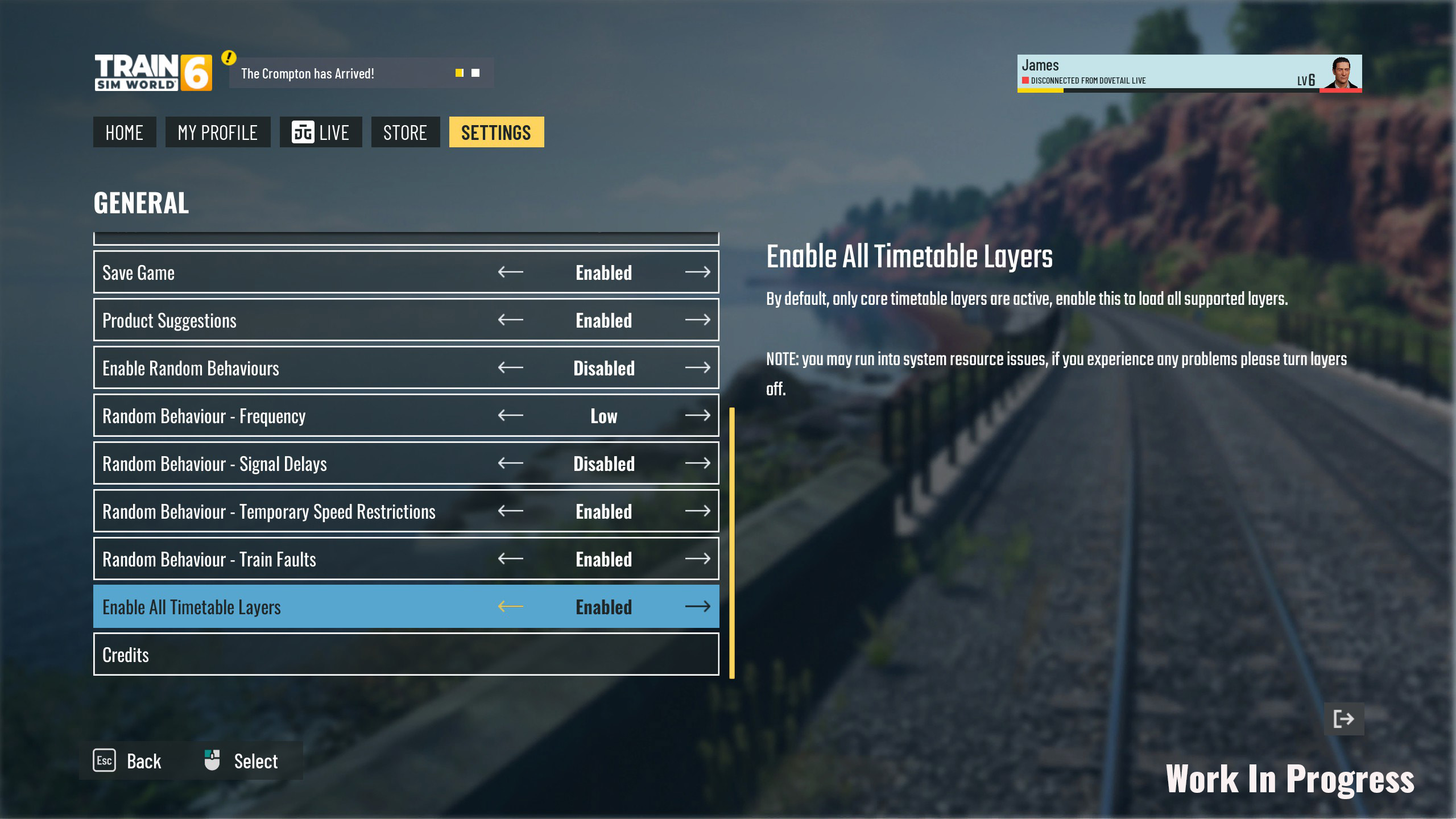
Can I save my progress and resume it later?
Yes, each service will be marked as complete in the menu once you've done it. Therefore, you can easily see which services you have completed and pick up where you left off.
You can also save during a service via the pause menu. Clicking on Resume Last Played from the main menu will take you back where you were. However, this save slot will be overwritten if you save something else.
Why does the service end before the final stop?
Services in the game are based on a real life timetables, which may go further than what is represented in the game.
The service name will reflect the full distance covered by the real-life service, but the service description will clarify what part of that journey is playable within the scope of the route you are playing.
How do I use Free Roam tools in Timetable Mode?
You can take advantage of Free Roam tools in Timetable mode to add/remove rolling stock and set paths by pressing the Tab Key or by pressing Left on the D-pad.
This could be used to make a service more challenging, remove an AI service in the way, or just to cause chaos! However, modifying a service may prevent you from completing it, if you happen to block another service. So be careful what you change!
To learn more about Free Roam Mode, please visit the support page: Free Roam Mode
How do I use Fast Travel?
Fast travel can be used to quickly travel to another location within the route you are playing. This can be done from the Fast Travel menu, or via the in-game map. Fast Travel can only be used when on-foot.
How to use the Fast Travel menu
- Press Shift + F or LB/L1 + Y/Triangle on a controller to bring up a list of fast travel locations.
- Select a location, and you will be taken there after a short loading screen.
How to use the In-game map for Fast Travel
- Open the in-game map during gameplay by pressing the 9 Key (Touchpad/View button).
- Check the map for the crosshair markers shown below. You may need to zoom in to see them.
- Hovering over the marker will show you the location name.
- Click on the marker, and confirm you want to Fast Travel there.
How do I use Route Hopping?
Route Hopping will let you jump to another route where two or more routes share common locations. This will allow you to continue your journey without returning to the main menu. Just activate the in-game marker on foot and select a location to be taken to another route. If you don’t own a compatible route, the game will tell you what you need to jump there.
- You can find route hopping markers by checking the in-game map for this icon.
- On foot, the marker will look like this, and can be interacted with by pressing the E key (A/X Button).
- The Route Hopping menu will give you a list of potential locations you can hop to.
- Select one and then press Get Started.